Admin Module

Dashboard Columns Settings

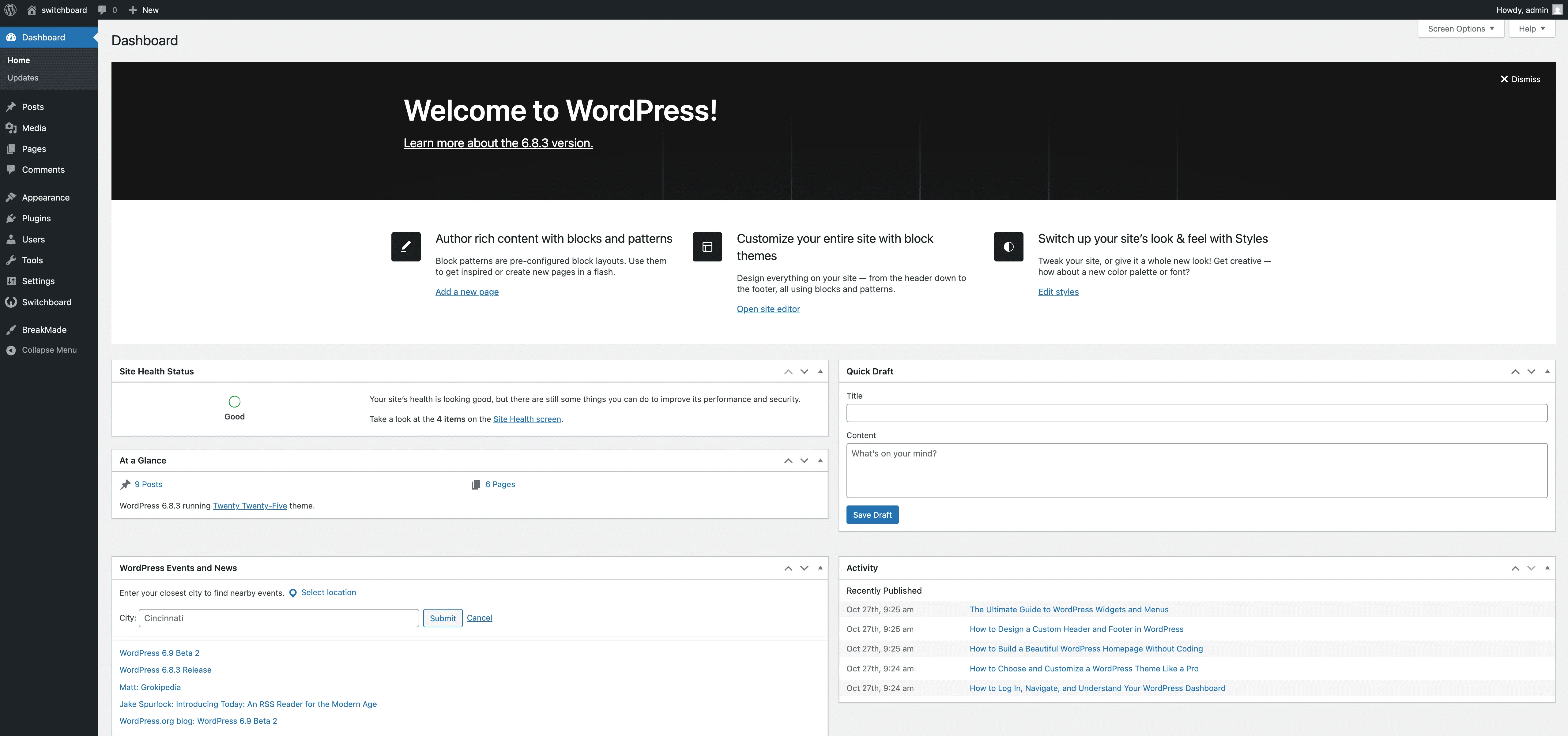
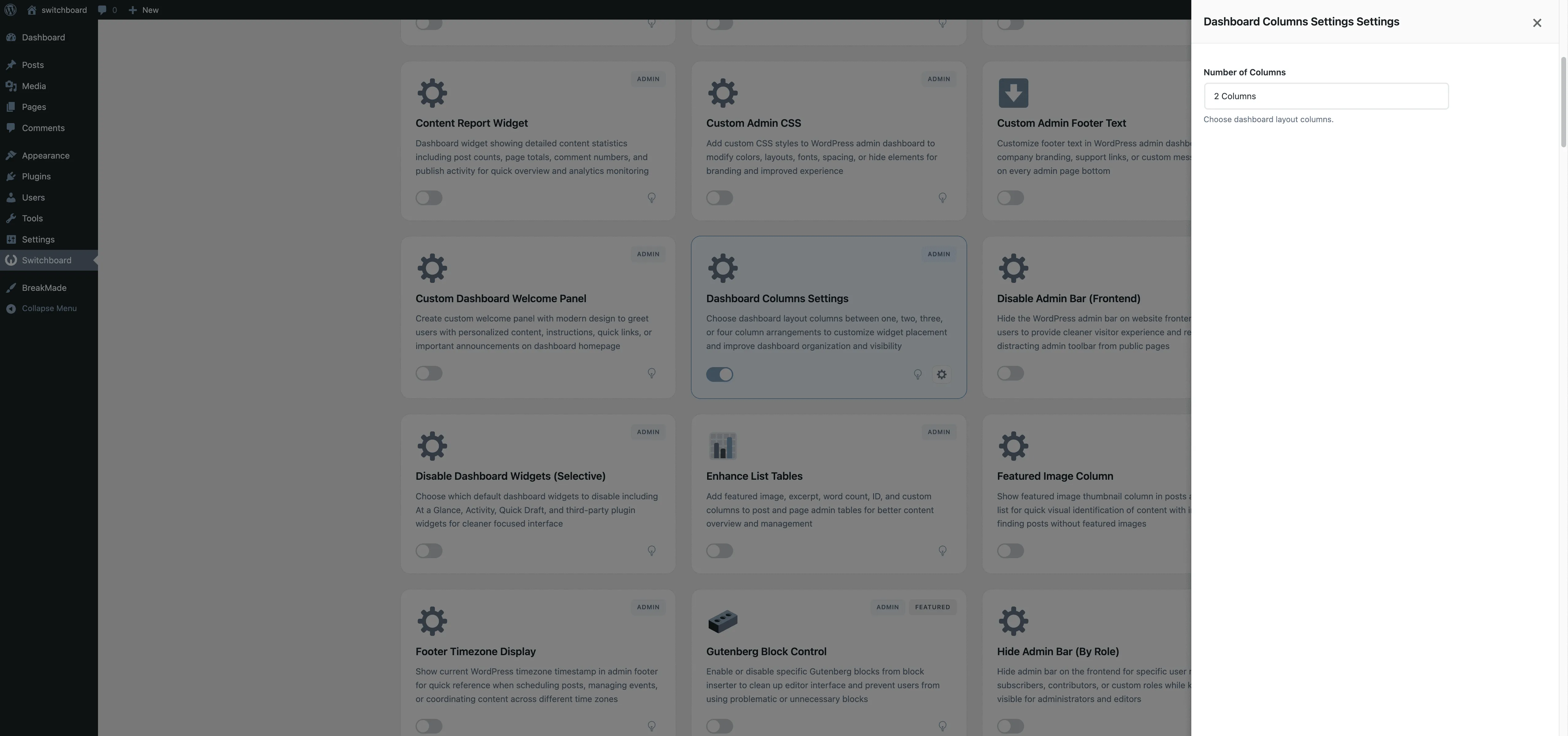
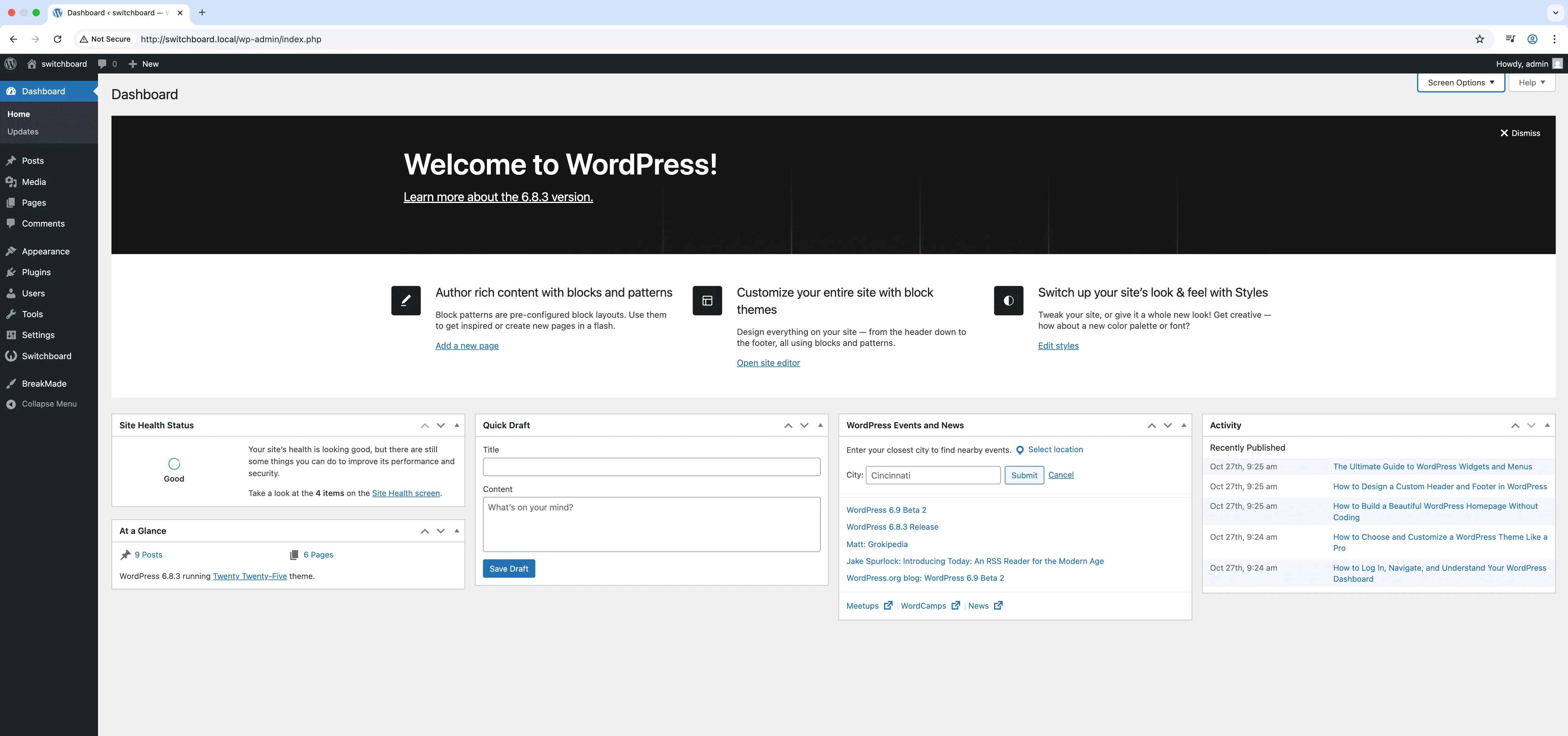
Dashboard Columns Settings lets you choose how many columns the WordPress dashboard uses for widget arrangement. Switch between one, two, three, or four column layouts to match your screen size and widget preferences. Wider monitors benefit from more columns showing more widgets at once, while smaller screens may prefer fewer columns for readability. This simple adjustment helps you organize dashboard widgets more effectively and see more information without scrolling.

Before
Before - Dashboard Columns Settings module
Enlarge
After
After - Dashboard Columns Settings module
Enlarge
Settings
Settings - Dashboard Columns Settings module
Enlarge

Swipe to see more →

admin dashboard columns layout customization

Dashboard Columns Settings Part of 165+ modules $349 $249

Get Lifetime Access

Key Features

Customizable dashboard columns
Widget layout control
Responsive dashboard design

Why Use This Module?

  • Optimize dashboard layout for your screen size
  • See more widgets at once with additional columns
  • Reduce scrolling with efficient widget arrangement
  • Choose between 1, 2, 3, or 4 column layouts
  • Better use of widescreen monitor space

Real-World Use Cases

Ultra-Wide Monitor Setup

Switch to 4-column dashboard layout on 32-inch monitors to utilize horizontal space and see all widgets without scrolling.

Single-Column Focus

Force 1-column layout for content writers who only need to see their writing dashboard widget in a distraction-free view.

Tablet Admin Access

Optimize dashboard to 2 columns for team members managing sites via iPad while away from desk.

How to Use

Configure the number of columns and widget layout in the module settings to optimize your dashboard layout.

Benefits & Impact

Time Savings

Automates manual tasks and streamlines your workflow

Performance Boost

Streamlines admin workflow and efficiency

Better UX

Provides a better user experience

Easy Maintenance

Simple setup with minimal ongoing maintenance

Frequently Asked Questions

What is the default column count?

WordPress defaults to 2 columns on most screens. Users can change this via Screen Options, but this module lets you set a site-wide default.

Does this affect individual user preferences?

This sets the default. Individual users can still adjust their column preference through Screen Options on the dashboard.

Will more columns work on small screens?

WordPress is responsive, so on smaller screens columns will stack regardless of the setting. The column count primarily affects larger displays.

What Users Are Saying

"Four columns on my ultrawide monitor means I see everything at once. No more scrolling."

— Power User

"Set everyone to two columns as default. Consistent experience across the team."

— Content Team

"Single column keeps things simple. I only have a few widgets anyway."

— Personal Blog

Related Modules

ADMIN

Display Active Plugins First

Show active plugins at the top of plugins list separated from inactive plugins for easier management and quick access to enabled plugins needing updates

plugins admin sorting +2
ADMIN

Admin Color Schemes

Create custom admin color schemes with primary and secondary colors applied throughout WordPress dashboard including menu, buttons, links, and interface elements

admin colors themes +2
ADMIN

Admin Columns Manager

Manage, reorder, hide, and customize admin list table columns for all post types with drag-and-drop interface and custom fields support for developers

admin columns tables +2
WPSwitchboard

165+ Modules.
One Plugin. Done.

Security, admin tools, performance, SEO, and more. All in one place.

Get Lifetime Access - $349 $249
Core Modules
165+
Admin Tools, Security, Optimization, and more
Enhance your WordPress admin experience
Admin Tools
Dashboard Enhancements
Customize admin interface
Security & Performance
Optimization Modules
Secure & optimize your site