Admin Module

Gutenberg Block Control

Gutenberg Block Control lets you enable or disable specific blocks in the WordPress block editor. Remove blocks your content team should not use, hide confusing options, or simplify the editor to show only relevant blocks for your content workflow. This is useful for maintaining content consistency, preventing authors from using problematic blocks, or simply decluttering the block inserter. Each block category and individual block can be toggled independently.

Before
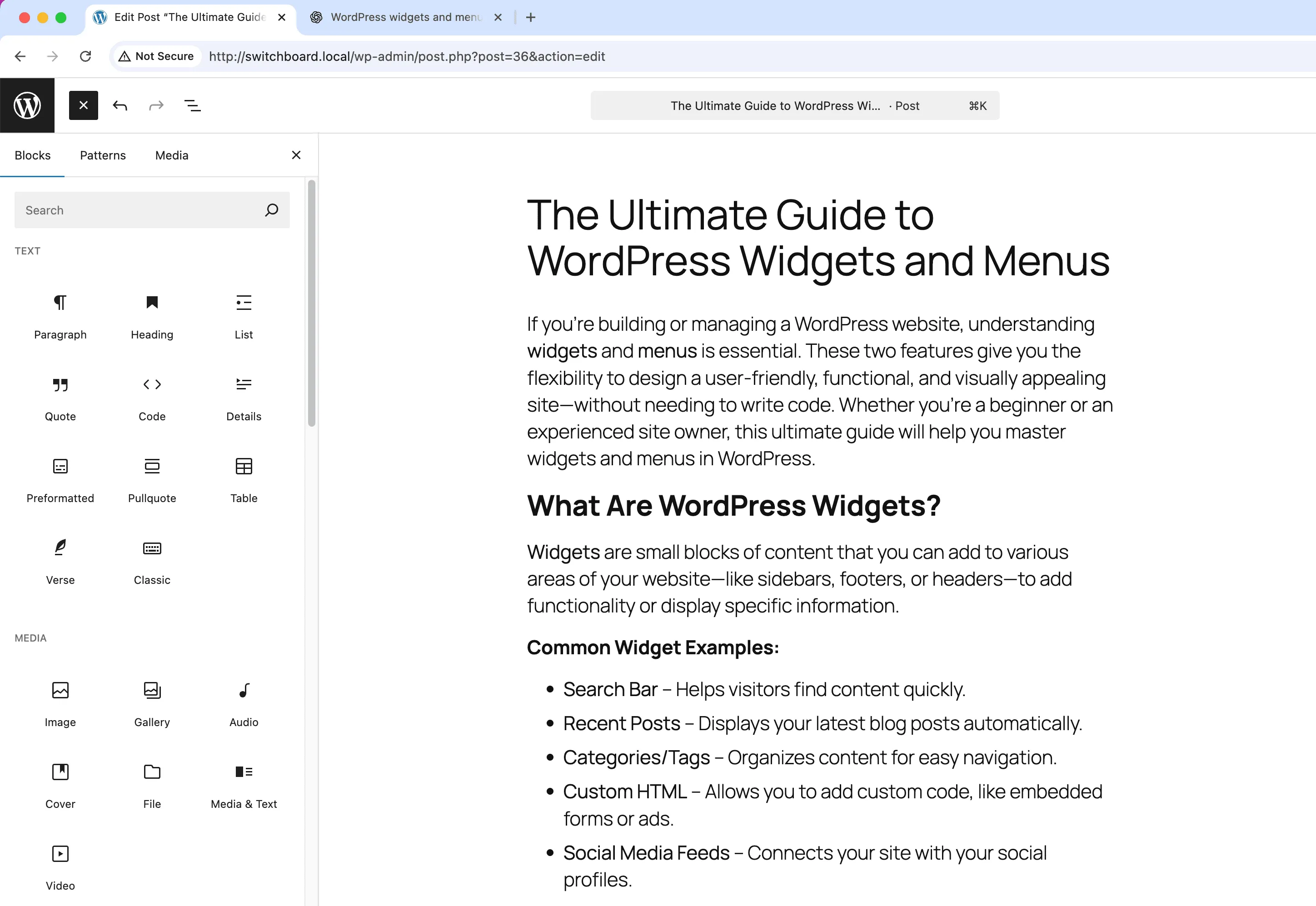
Before - Gutenberg Block Control module
Enlarge
After
After - Gutenberg Block Control module
Enlarge
admin gutenberg blocks control editor

Gutenberg Block Control Part of 165+ modules $349 $249

Get Lifetime Access

Key Features

Selective block enabling/disabling
Simplified block editor
Custom block availability

Why Use This Module?

  • Control which blocks are available
  • Simplify editor for content teams
  • Maintain content consistency
  • Hide problematic or unused blocks
  • Per-block and per-category control

Real-World Use Cases

Simplified Editor for Clients

Disable 40+ advanced blocks (code, columns, pullquotes) leaving only paragraph, image, and heading for non-technical blog authors.

Enforce Brand Consistency

Remove blocks like 'Custom HTML' and 'Shortcode' that allow users to break site design or inject unauthorized code.

WooCommerce Focus

Disable content blocks not needed for product descriptions, keeping only essential blocks to simplify product editors' experience.

How to Use

Select which blocks to disable in the module settings. This helps simplify the block editor for your specific needs.

Benefits & Impact

Time Savings

Automates manual tasks and streamlines your workflow

Performance Boost

Streamlines admin workflow and efficiency

Better UX

Provides a better user experience

Easy Maintenance

Simple setup with minimal ongoing maintenance

Frequently Asked Questions

Will existing blocks be affected?

Existing blocks in content remain. Hidden blocks just cannot be inserted into new content.

Can I hide third-party plugin blocks?

Yes, blocks from plugins appear in the list and can be disabled like core blocks.

Is this per user role?

Currently this applies site-wide. All users see the same block availability.

What Users Are Saying

"Editors only need certain blocks. Hid everything else and the inserter is actually usable now."

— News Site

"Brand guidelines limit formatting options. Hiding irrelevant blocks enforces consistency."

— Enterprise

"I use maybe 5 blocks total. Hid the rest and found what I need instantly."

— Simple Blog

Related Modules

ADMIN

Display Active Plugins First

Show active plugins at the top of plugins list separated from inactive plugins for easier management and quick access to enabled plugins needing updates

plugins admin sorting +2
ADMIN

Admin Color Schemes

Create custom admin color schemes with primary and secondary colors applied throughout WordPress dashboard including menu, buttons, links, and interface elements

admin colors themes +2
ADMIN

Admin Columns Manager

Manage, reorder, hide, and customize admin list table columns for all post types with drag-and-drop interface and custom fields support for developers

admin columns tables +2
WPSwitchboard

165+ Modules.
One Plugin. Done.

Security, admin tools, performance, SEO, and more. All in one place.

Get Lifetime Access - $349 $249
Core Modules
165+
Admin Tools, Security, Optimization, and more
Enhance your WordPress admin experience
Admin Tools
Dashboard Enhancements
Customize admin interface
Security & Performance
Optimization Modules
Secure & optimize your site